- 1. Where to Find Figma 3D Transforms
- 2. The Controls: Rotation, Depth, and Origin
- 3. Perspective Lives on the Parent Frame
- 4. Keep Nested Layers 3D, With Trade-Offs
- 5. Animate It With Figma Motion
- 6. Hand Off Figma 3D Transforms as CSS
- 7. Know the Limits
- Design Tips Before You Tilt Everything
- The Bigger Picture: Design Tools Are Catching Up With the Browser
- Quick Questions, Answered
- Final Thoughts: A Small Panel Worth Learning
Figma 3D transforms are now open to try. On November 12, 2026, Figma moved the feature from a waitlist to an open beta, so anyone with a Full seat and edit access can rotate layers in three dimensions directly on the canvas. Figma previewed it earlier this year at its Config conference.
It is a small panel with large consequences for interface design. Tilted cards, flip animations, and layered depth used to mean plugins or a detour into another tool. This guide covers how Figma 3D transforms work, where they stop, and how the result reaches code. If you like design features that map cleanly to CSS, you may also enjoy CSS random() explained.
Key takeaways
- The feature is an open beta for Full seats on all plans, according to Digcy’s walkthrough.
- You can rotate a layer on the X, Y, and Z axes, push it forward or back, and set perspective on the parent frame.
- It is 2.5D. Flat layers move in space, but there are no meshes, materials, or real lighting.
- Dev Mode turns the settings into standard CSS properties.
3
Axes you can rotate a layer on with the new effect: X, Y, and Z. New plugin APIs for it shipped the same day, per Figma’s developer notes.
1. Where to Find Figma 3D Transforms
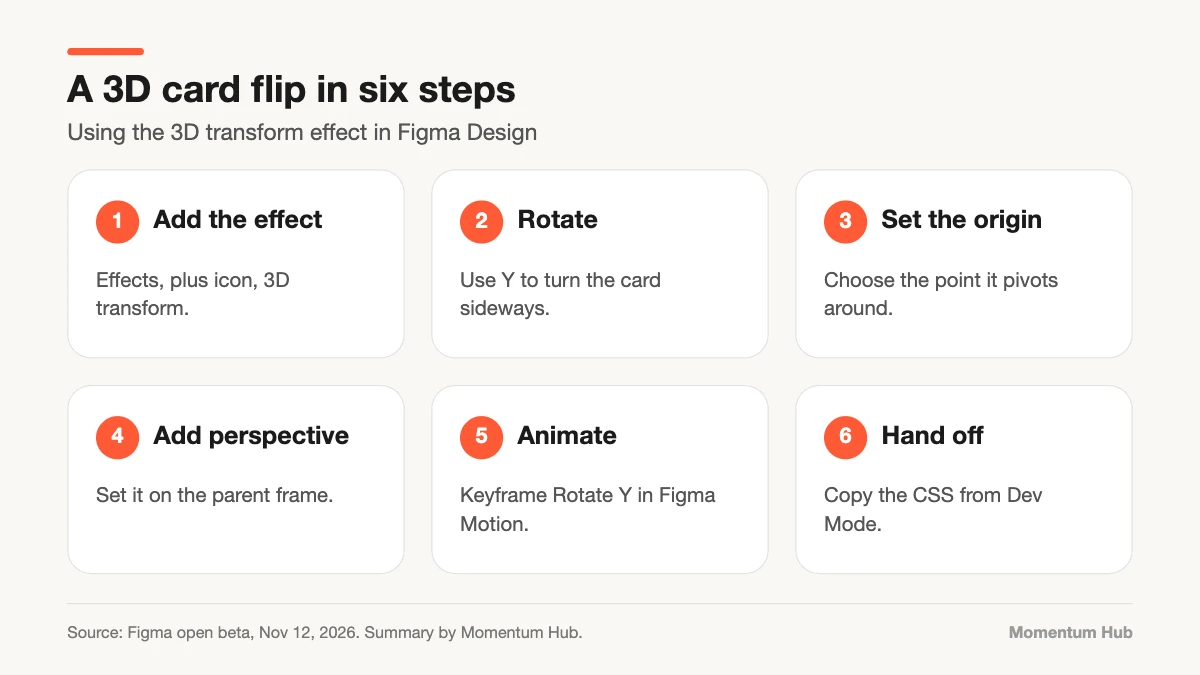
Select a layer, open the Effects section, click the plus icon, and choose 3D transform. That is all. Text, fills, and nested layers stay editable underneath, so you are not flattening anything.
2. The Controls: Rotation, Depth, and Origin
There are three kinds of control. Rotation on X tilts a layer forward or back. Rotation on Y turns it left or right. Rotation on Z spins it flat on the canvas.
Depth moves the layer closer or farther away. The origin point sets where the layer pivots, which is the difference between a door swinging on its hinge and a coin spinning on its center. A backface toggle decides whether the back of a turned layer is shown or hidden. You can drag handles on the canvas or type values.
3. Perspective Lives on the Parent Frame
Perspective is set on the frame that contains your layers, in pixels. A smaller value gives a more dramatic effect, and a larger value is subtler. It does nothing unless a layer inside has a 3D transform.
This mirrors how CSS works, which is the point. What you see in the file is what a browser can render.
4. Keep Nested Layers 3D, With Trade-Offs
A setting called Keep nested layers 3D puts child layers into one shared space, so they can pass in front of and through each other. It is what makes a real card flip possible.
There is a cost. While it is on, the frame cannot use opacity, blend modes, shaders, other effects, or clipping, and its own fills and strokes are hidden. A Turn into flat plane option ends the shared space.
5. Animate It With Figma Motion
You can keyframe Rotate X, Rotate Y, Depth, and perspective in Figma Motion. That covers most interface animation: flips, tilts on hover, and panels that swing into view.
According to Digcy, Figma’s agent can also apply or edit the effect from a prompt. Treat that as a starting point and adjust by hand. We covered how these assistants fit into design work in AI and automation in design.
6. Hand Off Figma 3D Transforms as CSS
Dev Mode maps the settings to standard CSS. Depth becomes translateZ. The nested-layer setting becomes transform-style. Perspective becomes perspective. A coding agent connected to Figma’s MCP server can read the same values.
A card flip built this way comes down to a few lines:
.scene { perspective: 800px; }
.card { transform-style: preserve-3d; transition: transform 0.6s; }
.card.is-flipped { transform: rotateY(180deg); }
.card-face { backface-visibility: hidden; }
.card-back { transform: rotateY(180deg); }
If the Model Context Protocol is new to you, see our explainer on MCP and file transfers.
7. Know the Limits
- It is 2.5D. You are moving flat layers, not modelling objects.
- It is a beta, so behavior and controls may change.
- The shared 3D mode switches off several common layer features.
- Complex scenes that look smooth on a desktop may run poorly in mobile browsers. Test on a real phone.
- Plugin support is new. The
transform3d,transformOrigin, andscene3dAPIs are also in beta.
Design Tips Before You Tilt Everything
- Use depth to show hierarchy, such as a selected card lifting toward the viewer.
- Keep rotations small for interface elements. Five to fifteen degrees reads as depth. Forty-five reads as a gimmick.
- Leave text flat or nearly flat, so it stays readable.
- Offer a reduced-motion version of every animation.
- Check contrast again after rotating, because angled surfaces can look dimmer.
Small geometric details change how polished an interface feels. Our piece on squircles and smooth corners makes the same case.
The Bigger Picture: Design Tools Are Catching Up With the Browser
Browsers have supported 3D transforms for well over a decade. Design tools mostly ignored them, so designers faked depth with skewed shapes and developers rebuilt the effect by guesswork. Figma 3D transforms close that gap by using the browser’s own model.
It fits a wider pattern this year, which we also saw at Adobe MAX: design tools are moving closer to the medium they design for.
Quick Questions, Answered
Who can use Figma 3D transforms? According to current guides, anyone with a Full seat and edit access to the file, on any plan.
Is it real 3D modelling? No. It moves flat layers in space, often called 2.5D.
Will developers get usable code? Yes. Dev Mode exposes standard CSS properties such as perspective and transform-style.
Final Thoughts: A Small Panel Worth Learning
Figma 3D transforms will not replace a 3D tool, and they are not meant to. They make depth an ordinary design property that survives the trip to code. Build one card flip this week, and you will know most of what the feature can do.